
The short answer
- Dropbox is the only one of the four with a built-in duplicate finder. It's on paid plans and only looks inside Dropbox.
- In Google Drive, OneDrive and Box you have to search and sort by hand, one service at a time.
- Finding copies across services needs one list of every file. Axclaim builds that list from file details your cloud services already report, without opening your files.
- Where two services share a checksum, Axclaim confirms the copies are identical. Where they don't, it shows files with the same name and size as possible matches.
Most people don’t plan to keep files in four places. It happens gradually: a Dropbox account from years ago, Google Drive that came with Gmail, OneDrive that came with Windows, Box from work. Photos get backed up twice, a project folder gets copied when you switch services, and the same PDF ends up saved wherever you happened to be working.
Each service charges for storage, so copies cost money once an account fills up. They also make it harder to know which version is the real one.
What each cloud service can do on its own
| Service | Built-in duplicate finder | What you can do instead |
|---|---|---|
| Dropbox | Yes, on paid plans | Use Find duplicates on dropbox.com |
| Google Drive | No | Sort by size on the Storage page, search by name |
| OneDrive | No | Sort by size, search by name |
| Box | No | Sort by size, search by name |
Dropbox
Paid Dropbox plans include a Find duplicates tool on dropbox.com. Open All files, click the settings icon next to it, then choose Organize and Find duplicates. The free Basic plan doesn’t include it. Our Dropbox duplicates guide covers both cases step by step.
Google Drive
Google Drive has no duplicate finder. Two manual approaches work:
- Sort by size. Click Storage in the left menu at drive.google.com to list your files from largest to smallest. Copies of the same big file tend to sit next to each other.
- Search by name. Search for a file name to see every copy, including ones named “Copy of …” or ending in “(1)”.
When you upload a file with the same name as one already in Drive, Google saves it as a new version of the existing file unless you choose to keep both. So most Drive duplicates have slightly different names or sit in different folders.
Our guide to finding duplicate files in Google Drive covers more ways to find them.
OneDrive
OneDrive has no duplicate finder either. Microsoft’s help article on duplicates covers a different problem: copies with your computer’s name added to the file name, which the OneDrive app creates when it has trouble with your sign-in. Its fix is to refresh your saved credentials.
For real copies, open OneDrive on the web, switch to list view, sort by file size and search for names you suspect are duplicated.
Box
Box has no duplicate finder. When you upload a file through the Box web app into a folder that already has a file with the same name, Box adds it as a new version. That keeps some duplicates away, but copies with different names or in different folders still pile up. Sort by size and search by name to find them.
Why matching across services is hard
Doing this by hand means comparing four lists that no service will show you side by side. Even with all the lists in one place, two files with the same name aren’t necessarily the same file.
The reliable test is a checksum: a short code calculated from a file’s contents. Identical files always have identical checksums. Each service reports checksums for its files, but they don’t all use the same kind:
- Google Drive reports MD5, SHA-1 and SHA-256 checksums for uploaded files.
- Box reports SHA-1.
- Dropbox uses its own content hash.
- OneDrive uses Microsoft’s own hash. Some older personal files also carry a SHA-1.
That decides which copies can be confirmed without opening the files:
| Services | How copies are matched |
|---|---|
| Google Drive and Box | Confirmed by SHA-1 |
| Dropbox and Google Drive | Confirmed for files up to 4 MB. Larger files are matched by name and size. |
| OneDrive and Google Drive or Box | Confirmed for older OneDrive personal files that have a SHA-1. Others are matched by name and size. |
| Dropbox and Box, Dropbox and OneDrive | Matched by name and size |
| Two files in the same service | Confirmed by that service’s own checksum |
How to find duplicates across all your clouds with Axclaim
Axclaim reads the file list from each service you connect and groups the copies for you. It uses names, sizes and checksums. It doesn’t open or download your files to compare them.
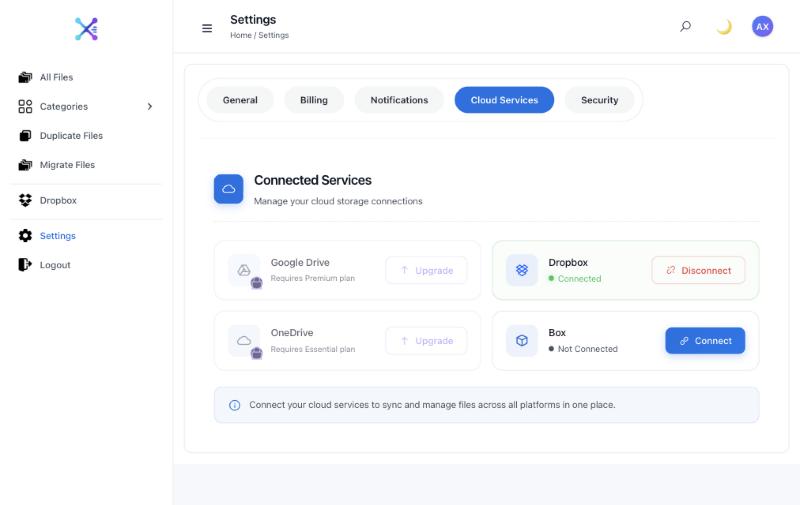
- Connect your services. Sign up at app.axclaim.com, open Settings, then Cloud Services. The free plan connects Dropbox and Box. Essential adds OneDrive and Premium adds Google Drive.
- Let the first scan finish. Axclaim lists every file in each connected account. Large accounts take longer.
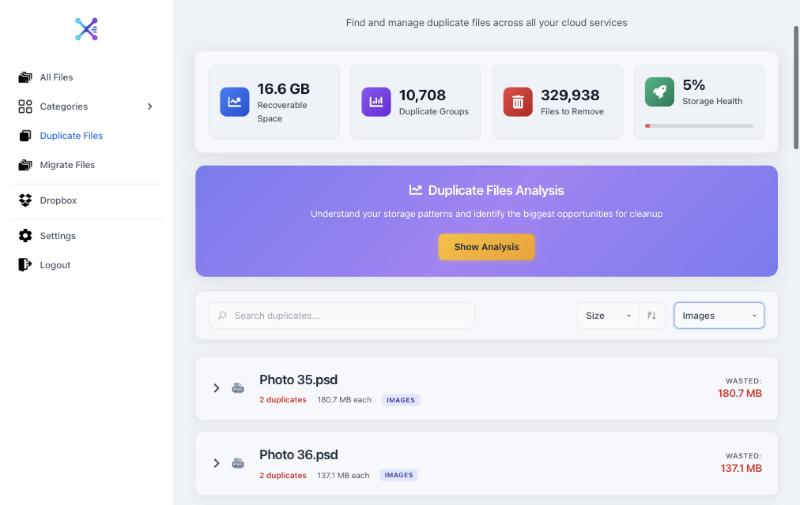
- Open Duplicate Files. The top of the page shows how much space you could recover, how many duplicate groups were found and how many files you could remove. Filter by file type and sort by size to start with the copies that waste the most space.
- Check how each copy was matched. A green check marks a verified duplicate: the checksums match, so the files are identical. A blue ≈ marks a possible match: same name and size, but the two services don’t share a checksum. If a possible match matters, open both copies before deleting one.
- Choose what to delete. Tick the copies you don’t need. Axclaim always keeps at least one copy in every group, and when a group has verified copies, one of those stays. To speed things up, click Show Analysis, then Auto-Select Safe Duplicates to select every copy except one in each group.
- Delete. Each file goes to the trash or recycle bin of the service it was in, where you can restore it for a limited time.
On the free plan you can preview your top 10 duplicate groups. Deleting duplicates needs the Essential or Premium plan.
Before you delete anything
- Keep the copy in the service you plan to stay with. If you’re moving away from Dropbox, delete the Dropbox copy and keep the one in Google Drive.
- Look at shared folders. Deleting a file inside a shared folder removes it for everyone who has access to that folder.
- Open possible matches. Two files with the same name and size are usually the same file, but not always.
- Think about links. Shared links point to one specific copy. If you delete that copy, the link stops working.
Frequently asked questions
Does Google Drive have a duplicate file finder?
No. Google Drive doesn't have a built-in tool for finding duplicates. You can sort your files by size on the Storage page or search for a file name to see every copy, or use a tool that reads your Drive's file list for you.
Can I find duplicates between Dropbox and Google Drive?
Yes. Axclaim confirms identical files up to 4 MB using checksums that both services report, and lists larger files with the same name and size as possible matches. Connecting Google Drive needs Axclaim's Premium plan.
Does Axclaim download my files to find duplicates?
No. It uses file names, sizes and the checksums your cloud services already report. Your files stay where they are.
What happens to the duplicates I delete?
They go to the trash or recycle bin of the service they were in, so you can restore them for a limited time. That's usually 30 days, depending on the service and your plan.
Find the duplicates in all your clouds
Connect Dropbox and Box for free and preview your biggest duplicate groups. Upgrade when you're ready to delete them, or to add OneDrive and Google Drive.