
The short answer
- On paid Dropbox plans, dropbox.com has a Find duplicates tool. Open All files, click the settings icon, then choose Organize and Find duplicates.
- The free Basic plan doesn't include it. You can search by hand, or connect Dropbox to Axclaim's free plan to see your biggest duplicate groups.
- Dropbox's tool only looks inside Dropbox. Finding copies of your Dropbox files in Google Drive, OneDrive or Box needs a tool that reads all of them.
- Deleted Dropbox files can be restored for a limited time (30 days on Basic and Plus), so a mistake can be undone.
Dropbox fills up faster than you’d expect. Camera uploads from more than one phone, files saved twice from email, and “conflicted copy” files from editing on two devices all count against your storage. Here’s how to find them, depending on your Dropbox plan.
Option 1: Dropbox’s Find duplicates tool (paid plans)
Paid Dropbox plans have a duplicate finder built in.
- Sign in at dropbox.com and open All files.
- Click the settings icon next to All files, then choose Organize and Find duplicates.
- Go through the results and delete the copies you don’t need.
The tool only works on dropbox.com and only looks inside your Dropbox.
Option 2: Find duplicates by hand (free Basic plan)
The free Basic plan has no duplicate finder, but a few searches catch the usual suspects:
- Search for a file name to see every copy of it, wherever it’s stored.
- Search for “conflicted copy”. Dropbox creates these when the same file is changed in two places at once. Once you’ve kept the version you want, the conflicted copy can go.
- Look for copies ending in “(1)” or “(2)”. These usually come from saving or uploading the same file twice.
- Check your Camera Uploads folder if you’ve backed up photos from more than one phone or app.
Option 3: Find Dropbox duplicates with Axclaim (free to start)
Axclaim scans your Dropbox and groups identical files, even when they have different names. It uses the content hash Dropbox reports for every file, so it doesn’t need to open or download anything.
- Connect Dropbox. Sign up at app.axclaim.com, open Settings, then Cloud Services, and connect Dropbox. The free plan includes Dropbox and Box.
- Wait for the scan. Axclaim lists every file in your Dropbox. Large accounts take longer.
- Open Duplicate Files. See how much space you could recover, then filter by file type or sort by size to find the copies that waste the most.
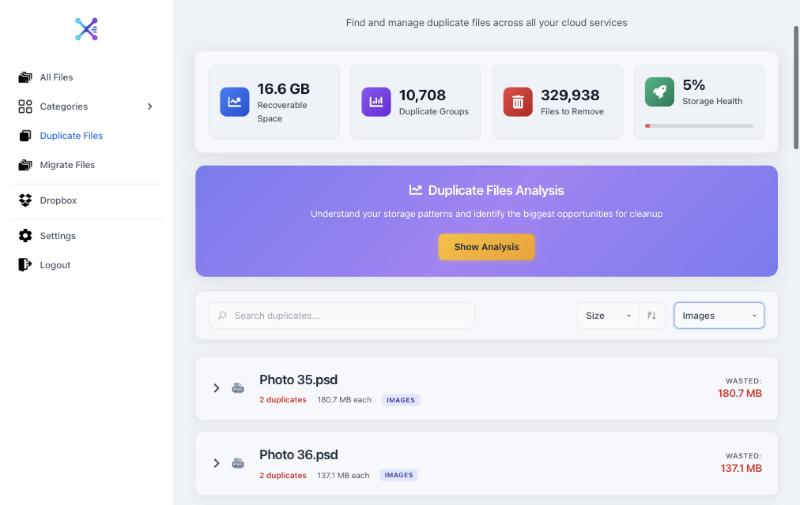
- Delete the extra copies. On the Essential or Premium plan, tick the copies you don’t need, or click Show Analysis, then Auto-Select Safe Duplicates to select every copy except one in each group. Axclaim always keeps at least one copy.
- Restore if you need to. Deleted files go to Dropbox’s deleted files, not straight to permanent deletion.
The free plan shows your top 10 duplicate groups, which is often enough to see whether a cleanup is worth it.
Dropbox’s tool or Axclaim?
| Dropbox Find duplicates | Axclaim | |
|---|---|---|
| Plan you need | A paid Dropbox plan | Free to find duplicates, Essential or Premium to delete them |
| Where it looks | Your Dropbox | Dropbox, plus Box, OneDrive and Google Drive if you connect them |
| Where deleted files go | Dropbox’s deleted files | Dropbox’s deleted files |
Duplicates between Dropbox and your other clouds
If you also use Google Drive, OneDrive or Box, some of your Dropbox files probably have copies there too. Dropbox’s tool can’t see them. Axclaim can:
- Dropbox and Google Drive: files up to 4 MB are confirmed identical by checksum. Larger files with the same name and size are shown as possible matches.
- Dropbox and Box or OneDrive: these services don’t share a checksum with Dropbox, so files with the same name and size are shown as possible matches.
Our guide to finding duplicates across cloud storage covers this in more detail.
Restoring a file you deleted by mistake
On dropbox.com, open Deleted files, select the file and click Restore. Dropbox keeps deleted files for 30 days on the Basic and Plus plans, and for longer on some other plans.
Frequently asked questions
Does Dropbox have a duplicate file finder?
Yes, on paid plans. It's called Find duplicates, and you'll find it on dropbox.com under the settings icon next to All files, then Organize. The free Basic plan doesn't include it.
Can I find duplicate files in Dropbox for free?
Yes. You can search for file names by hand, or connect Dropbox to Axclaim's free plan, which shows your top 10 duplicate groups and how much space they waste. Deleting duplicates in Axclaim needs the Essential or Premium plan.
Does Axclaim find copies that have different names?
Yes, within Dropbox. Axclaim groups files by the content hash Dropbox reports for each file, so identical files are grouped even when their names are different.
Are duplicates deleted with Axclaim gone for good?
No. They go to Dropbox's deleted files, where you can restore them for a limited time (30 days on the Basic and Plus plans).
See your Dropbox duplicates for free
Connect Dropbox to Axclaim's free plan to see your 10 biggest duplicate groups and how much space they take up. No credit card required.