
The short answer
- The free way is to download files from one service and upload them to the other. It works, but every file passes through your computer.
- With both desktop apps installed, you can copy files from one synced folder to the other and let the apps do the uploading.
- A cloud-to-cloud tool like Axclaim copies files directly between services, so nothing is downloaded to your computer.
- Whichever way you choose, check the copies before you delete the originals.
Moving files from one cloud service to another sounds like it should be one button. None of the big four (Google Drive, Dropbox, OneDrive and Box) has that button for personal accounts, so you choose between doing it yourself and using a tool that connects to both services.
Before you start
- Make room in the destination. Free plans are small: 2 GB on Dropbox Basic, 5 GB on OneDrive, 10 GB on Box and 15 GB on Google, shared between Drive, Gmail and Google Photos.
- Plan for files that only work in one service. Google Docs, Sheets and Slides only exist inside Google Drive. Downloading them from drive.google.com converts them to Word, Excel and PowerPoint files, which you can then upload anywhere. Dropbox Paper docs only open in Dropbox, so export them first.
- Expect to share again. Sharing settings and shared links stay with the original files.
- Only the latest version moves. Version history stays behind in the old service.
Method 1: Download and re-upload
This works for any pair of services and costs nothing.
- Sign in to the service you’re leaving, select the files or folders, and download them. Folders arrive as zip files.
- Unzip the downloads.
- Sign in to the destination and upload the files or folders, or drag them into the browser window.
Downloads have limits. On dropbox.com, a folder must be under 250 GB and hold fewer than 10,000 files to download as a zip. Google Drive splits big downloads into several zip files. For more than a few gigabytes, method 2 is usually easier.
Method 2: Copy between the desktop apps
If you use a Mac or a Windows PC, install the desktop app for both services: Dropbox, Google Drive for desktop, OneDrive or Box Drive. Each one adds a folder to Finder or File Explorer.
- Sign in to both apps.
- Open both folders side by side.
- Copy the files from one folder to the other. The destination app uploads them in the background.
Two things to watch:
- Online-only files download first. Most of these apps keep files in the cloud until you open them. Copying them makes the source app download them, so you need enough free disk space for everything you copy at once.
- Copy, don’t move. If you move files instead, the source app deletes them from the old service straight away, before you’ve checked that they uploaded.
Method 3: Copy cloud to cloud with Axclaim
Axclaim connects to both services and streams each file from one to the other, so nothing is downloaded to your computer.
- Connect both services. In Axclaim, open Settings, then Cloud Services, and connect the source and the destination.
- Open Migrate Files. Choose a Source Service and a Destination Service.
- Keep “Skip duplicate files” ticked. Axclaim then skips any file that already exists with the same name in the destination’s Migrate folder, so running a migration twice doesn’t create copies.
- Select the files. Search or browse the source, tick the files you want, and click Migrate.
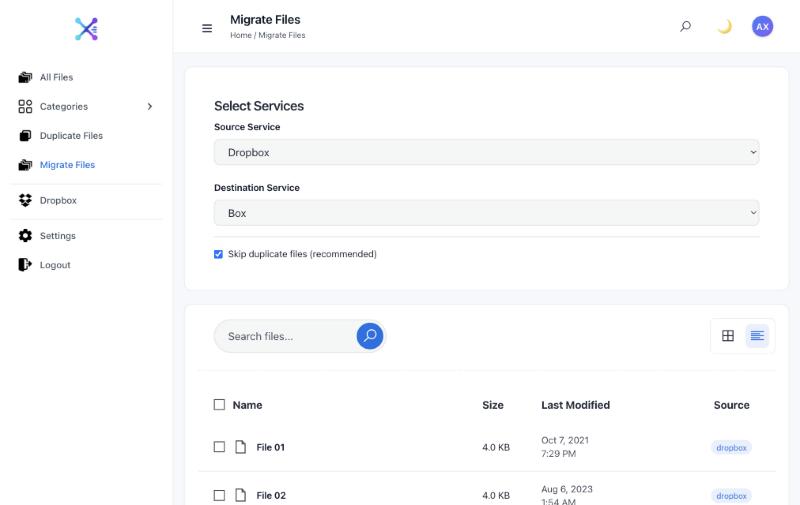
- Find the copies. The files appear in a folder called Migrate at the top level of the destination. Folders aren’t recreated, so move the files where you want them afterwards. The originals stay in the source service.
Migration is part of the paid plans. Essential copies up to 50 files a month between Dropbox, Box and OneDrive. Premium has no monthly limit and adds Google Drive. Axclaim can’t copy Google Docs, Sheets or Slides out of Google Drive yet, so download those the way method 1 describes.
Which method should you use?
| Method | Cost | Uses your computer | Best for |
|---|---|---|---|
| Download and re-upload | Free | Yes | A few files or folders |
| Desktop apps | Free | Yes, plus disk space | Big moves you can leave running |
| Axclaim | Essential or Premium plan | No | Copying between services without downloading |
After the move
- Spot-check the copies. Open a few files of each type in the destination and compare file counts with the source.
- Share again. Re-create any shared links or folder invitations people need.
- Delete the originals last. Deleted files go to the old service’s trash first, so you can still restore them for a while.
- Clean up copies. If you’d already copied some files over before, you’ll now have duplicates. Our guide to finding duplicates across cloud storage shows how to find them.
Moving from Dropbox to Google Drive in particular? See how to move files from Dropbox to Google Drive.
Frequently asked questions
Can I move files between cloud services without downloading them?
Yes, with a cloud-to-cloud tool. Axclaim streams each file from one service to the other, so nothing is downloaded to or saved on your computer.
Does moving files keep my folder structure?
Downloading and re-uploading, or copying between desktop apps, keeps your folders. Axclaim currently copies the files you select into one folder called Migrate in the destination, so you'll want to sort them into folders afterwards.
Will my sharing settings move with the files?
No. Sharing settings and shared links belong to the original files. Share the new copies again from the destination service.
Does Axclaim delete the originals?
No. Migration copies files and leaves the originals where they are. Delete them yourself once you've checked the copies.
Move files without downloading them
Connect your cloud accounts, pick a source and a destination, and Axclaim copies the files across for you. Migration is included in the Essential and Premium plans.