
The short answer
- For a few folders, download them from dropbox.com and upload them to drive.google.com.
- For a lot of files, install Dropbox and Google Drive for desktop and copy files from one folder to the other.
- To skip your computer entirely, copy cloud to cloud. In Axclaim this needs the Premium plan, because Google Drive is a Premium service.
- Nothing is removed from Dropbox during the move. Clear it out only after you've checked your files in Google Drive.
Dropbox and Google Drive don’t talk to each other, so getting your files from one to the other means either passing them through your computer or using a tool that connects to both. Here are three ways, from the simplest to the most hands-off.
Before you start
- Check your Google storage. Google’s free 15 GB is shared between Drive, Gmail and Google Photos. Click Storage in the left menu at drive.google.com to see how much is left.
- Export Dropbox Paper docs. Paper docs only open in Dropbox, so export them to another format before you move them.
- Decide about converting. Google Drive can turn Word, Excel and PowerPoint files into Google Docs, Sheets and Slides as you upload them. If you want that, turn on “Convert uploads” in Drive’s settings first. Leave it off to keep your files exactly as they are.
- Moving a whole company? If you’re moving a Dropbox business account to Google Workspace, your Workspace super admin can use Google’s Data Migration service in the Admin console, which supports Dropbox. This guide is for personal accounts and small teams.
Method 1: Download from Dropbox, upload to Google Drive
- Sign in at dropbox.com, select the files or folders you want, and click Download. Folders download as zip files.
- Unzip the download on your computer.
- Go to drive.google.com, click New, then Folder upload or File upload, and choose what you unzipped. You can also drag folders straight into the browser window.
Dropbox only zips a folder for download if it’s under 250 GB and holds fewer than 10,000 files. Split bigger folders into smaller downloads, or use method 2.
Method 2: Use the Dropbox and Google Drive desktop apps
- Install the Dropbox desktop app and Google Drive for desktop, and sign in to both.
- Open your Dropbox folder in Finder or File Explorer. Google Drive appears as its own drive with a My Drive folder inside it.
- Copy the folders you want from Dropbox into My Drive. Google Drive for desktop uploads them in the background.
Copy rather than move. Moving files out of your Dropbox folder deletes them from Dropbox right away, before Google Drive has finished uploading them. And if your Dropbox files are online-only, the Dropbox app downloads each one before it can be copied, so make sure you have enough free disk space.
Method 3: Copy straight from Dropbox to Google Drive with Axclaim
Axclaim copies files from Dropbox to Google Drive without them passing through your computer.
- Connect both accounts. Google Drive is part of Axclaim’s Premium plan. Open Settings, then Cloud Services, and connect Dropbox and Google Drive.
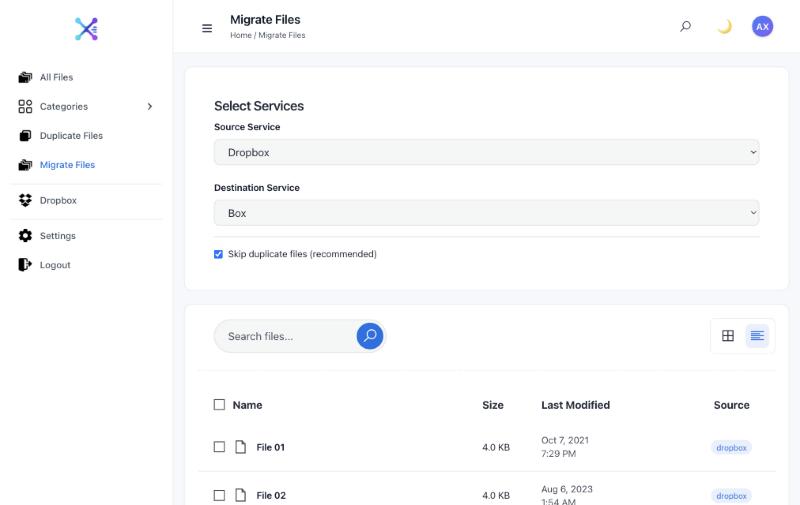
- Open Migrate Files. Set the Source Service to Dropbox and the Destination Service to Google Drive.
- Keep “Skip duplicate files” ticked, so files that already exist with the same name in the destination’s Migrate folder aren’t copied twice.
- Select your files and click Migrate.
- Sort the copies. Your files appear in a folder called Migrate in My Drive. Folders aren’t recreated, so move the files into the folders you want. Everything stays in Dropbox until you delete it.
After the move
- Check the files. Compare file counts and open a few files of each type in Google Drive.
- Look for duplicates. If some files were already in Google Drive, you now have two copies. Axclaim confirms copies between Dropbox and Google Drive by checksum for files up to 4 MB and shows larger files with the same name and size as possible matches. Our guide to finding duplicates across cloud storage explains how.
- Share again. Shared links and shared folders don’t move. Share the new copies from Google Drive.
- Clean up Dropbox last. Deleted Dropbox files can be restored for a limited time (30 days on the Basic and Plus plans), so a mistake can still be undone.
Moving between other services? Our guide to moving files between cloud storage services covers every combination.
Frequently asked questions
Can I transfer files from Dropbox to Google Drive directly?
For personal accounts, neither service has a built-in transfer, so you either go through your computer or use a cloud-to-cloud tool such as Axclaim. Companies moving a Dropbox business account to Google Workspace can also use Google's Data Migration service in the Workspace Admin console.
Will Google Drive convert my Word and Excel files?
Only if you turn on "Convert uploads" in Google Drive's settings before uploading. With it off, your files stay in their original format and still open in Google Docs and Sheets.
Does moving files keep my Dropbox folder structure?
Downloading and re-uploading, or copying between the desktop apps, keeps your folders. Axclaim copies the files you select into one folder called Migrate in your Google Drive.
Do I lose anything in Dropbox?
No. All three methods copy your files. Your Dropbox stays as it is until you delete files yourself.
Copy Dropbox to Google Drive without downloading
On the Premium plan, connect Dropbox and Google Drive and Axclaim copies the files across for you. Start free with Dropbox and Box to see how it works.