
The short answer
- You can move files from Google Drive to OneDrive without downloading them. Axclaim copies the files you pick straight from one service to the other, so nothing passes through your computer.
- Clear out duplicates first. OneDrive's free plan is 5 GB, a third of Google's 15 GB, and Axclaim shows your duplicates before you move, so you only copy one of each.
- Axclaim works in both directions. From OneDrive back to Google Drive, personal accounts have no built-in tool at all.
- Google Docs, Sheets and Slides only exist inside Google Drive. Download them as Word, Excel and PowerPoint files and upload those to OneDrive.
Switching from Google Drive to OneDrive, or using both? You don’t have to pass every file through your computer, and you don’t have to move years of duplicates along with everything else. Here’s how to clean up first and then copy only what you need, in either direction.
Before you start
- Find your duplicates. OneDrive’s free plan is 5 GB, shared with Outlook.com attachments, and Google gives you 15 GB. Our price comparison shows what more space costs on each. Copies made with “Make a copy”, files uploaded twice and folders synced from two computers all take space you’d be paying to move. Axclaim groups identical Google Drive files by checksum, even when their names differ. Our guide to finding duplicates in Google Drive shows how.
- Watch for file names OneDrive won’t accept. OneDrive doesn’t allow these characters in names: “ * : < > ? / \ |. It also rejects names that start or end with a space and a few reserved names such as CON, PRN, AUX and NUL. Google Drive allows all of them, so rename those files before you copy them.
- Download your Google Docs, Sheets and Slides. They only exist inside Google Drive. Downloading them from drive.google.com saves them as Word, Excel and PowerPoint files you can upload to OneDrive.
- Set aside very large files. Files over 250 MB can’t be copied into OneDrive with Axclaim yet, so move long videos and big archives with the OneDrive desktop app.
- Expect to share again. Sharing settings and shared links stay with the original files, and version history doesn’t move.
Copy cloud to cloud with Axclaim
Axclaim connects to both services and streams each file from one to the other, so nothing is downloaded to your computer. It works in both directions, and you choose exactly which files to copy.
- Connect both accounts. Sign up at app.axclaim.com, open Settings, then Cloud Services, and connect Google Drive and OneDrive. Google Drive is part of the Premium plan.
- Clear out duplicates. Open Duplicate Files, sort by size and delete the extra copies, so you only move one of each.
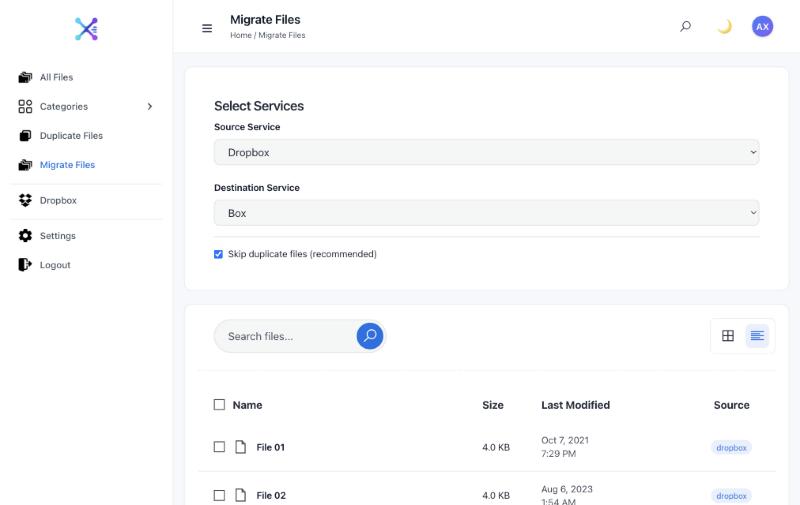
- Open Migrate Files. Set the Source Service to Google Drive and the Destination Service to OneDrive, or the other way round.
- Keep “Skip duplicate files” ticked, so files that already exist with the same name in the destination’s Migrate folder aren’t copied twice.
- Select your files and click Migrate. They appear in a folder called Migrate at the top of the destination. Folders aren’t recreated, so move the files where you want them afterwards. The originals stay where they are.
Other ways to move your files
- OneDrive’s import. OneDrive’s settings include an import from Google Drive. It only works in one direction, into OneDrive, and it has no cleanup step, so your duplicates come across too.
- Download and upload. Download files or folders from drive.google.com, unzip them, and upload them to onedrive.com. It’s free, but every file passes through your computer, so it suits a few folders rather than a whole Drive.
- Desktop apps. With Google Drive for desktop and OneDrive installed, you can copy folders from My Drive into your OneDrive folder. You need enough disk space for everything you copy, because files kept in the cloud download first, and Google Docs only copy as links.
Going from OneDrive to Google Drive
Google has no import tool for personal accounts, so a cloud-to-cloud tool is the only way to skip downloading. In Axclaim, follow the steps above with OneDrive as the source and Google Drive as the destination. You can clear out OneDrive’s duplicates first the same way.
If you’d rather do it by hand, download folders from onedrive.com, unzip them and upload them at drive.google.com. To turn Word and Excel files into Google Docs and Sheets, switch on “Convert uploads” in Drive’s settings first.
Which way should you move?
| Axclaim | OneDrive’s import | Download and upload | Desktop apps | |
|---|---|---|---|---|
| Direction | Both | Into OneDrive only | Both | Both |
| Through your computer | No | No | Yes | Yes |
| Clears duplicates first | Yes | No | No | No |
| Spots files already in both | Yes | No | No | No |
After the move
- Check the files. Compare file counts, and open a few files of each type in the destination.
- Catch copies that ended up in both. With both accounts connected, Axclaim lists files with the same name and size in Google Drive and OneDrive, so you can check them and delete the extra copies. Our guide to finding duplicates across cloud storage explains how matches work.
- Share again. Re-create any shared links or folder invitations people need.
- Clean up the old service last. Deleted files go to the trash or recycle bin first and still count toward your storage there, so empty it once you’re sure.
Moving between other services? Our guide to moving files between cloud storage services covers every combination.
Frequently asked questions
Can I move files from Google Drive to OneDrive without downloading them?
Yes. Axclaim copies the files you pick straight from Google Drive to OneDrive, or the other way, so nothing passes through your computer. OneDrive's settings also include a one-way import from Google Drive.
What happens to my Google Docs, Sheets and Slides?
They only exist inside Google Drive. Download them from drive.google.com, which saves them as Word, Excel and PowerPoint files, then upload those to OneDrive.
Do sharing settings move to OneDrive?
No. Sharing settings and shared links stay with the files in Google Drive. Share the new copies again from OneDrive.
Can I move files from OneDrive to Google Drive?
Yes. Personal Google accounts have no import tool, so the way to do it without downloading is a cloud-to-cloud tool like Axclaim. Set OneDrive as the source and Google Drive as the destination.
Move between Google Drive and OneDrive without downloading
On the Premium plan, Axclaim finds your duplicates first, then copies the files you pick in either direction. Start free with Dropbox and Box to see how it works.